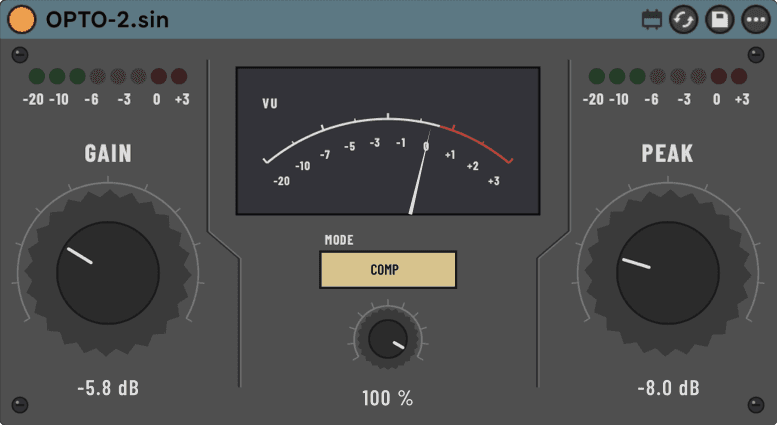
OPTO-2.sin
An opto-style leveler.
One knob drives threshold and reduction together. Turn Peak Reduction up, the leveling deepens, done. Put it first on a vocal.
CONTROLS
| Peak Reduction | 0–10the whole sensitivity control; there is no separate Threshold | the whole sensitivity control; there is no separate Threshold |
|---|---|---|
| Mode | COMP / LIMITprogram-dependent leveling, or a firmer ceiling | program-dependent leveling, or a firmer ceiling |
| Gain | 0–10makeup after reduction | makeup after reduction |
| Mix | 0–100%dry/wet blend — a SinAudio addition | dry/wet blend — a SinAudio addition |
MEASURED · Measured effective ratio at default Peak Reduction: 3.6:1. Reported latency at 48 kHz: 0 samples.
HOW IT WORKS
Peak Reduction is the only control that drives the detector — attack and release are not exposed on the panel. At the default Peak Reduction setting, the device's measured effective ratio is 3.6:1; the panel prints no ratio numeral, so there's no printed-versus-measured figure to reconcile. At rest, below the level where the detector engages, it keeps running rather than going fully silent — a low residual, not a hard mute. Every number here is host-measured on the production DSP, not estimated from the reference topology it draws on.
FIRST MOVE
Put it first on a vocal, COMP mode, and raise Peak Reduction until the VU moves only on the loudest phrases. Match level with Gain.
VOCAL LEVELING BEFORE ANYTHING ELSE
- Insert OPTO-2 as the first device on the vocal track.
- Mode COMP. Raise Peak Reduction until the VU needle works on the loud phrases and rests on the quiet ones.
- Bring Gain up until bypass on/off sounds the same loudness — judge the leveling, not the volume.
- Back Mix off from 100% if the vocal starts to sound held down.
LATENCY — MEASURED
At 48 kHz the device currently measures 0 samples of reported latency — it declares no lookahead control, so there is no additional plugin-delay compensation for Live to apply beyond the host's own block latency.
INSTALL
Unzip, then move the whole OPTO-2.sin folder into your User Library under Max for Live Devices. Keep the folder together. Needs Ableton Live 12 with Max for Live. Install help →